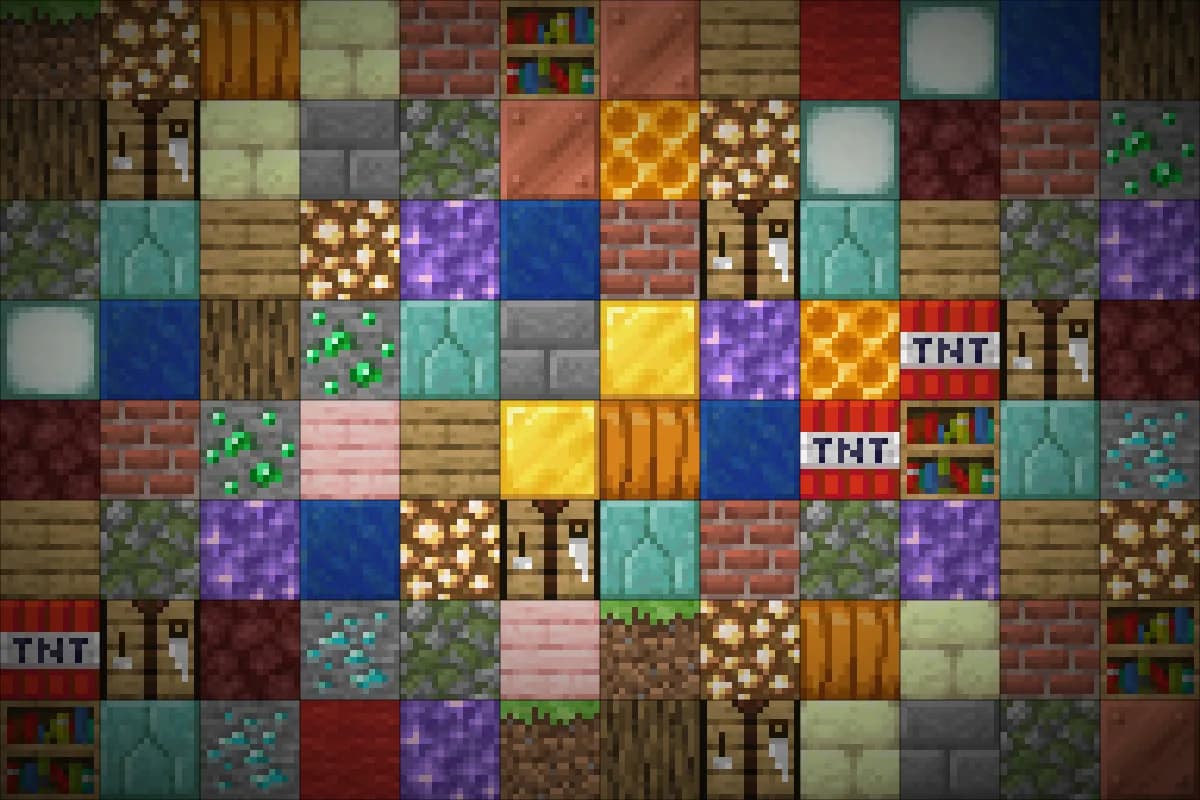
AI texture pack

AI Minecraft resource pack: recognisable blocks, repainted in your style

Our AI does not invent textures from nothing. It starts from each vanilla block, keeps its layout and repaints it in the art direction you wrote, then you check every block in 3D and fix details with the pixel editor.

Free to start · No credit card

AI Minecraft resource pack: vanilla block textures repainted by AI in one art direction and previewed in 3D

Vanilla as a layout guide

The original texture sets the composition and light and dark areas, so a door still reads as a door.

Blocks that tile

Edges are blended so a wall of the same block shows no hard seam between neighbours.

Clean cutouts

Flowers, glass and other cutout blocks keep a proper transparent silhouette.

Review, then retouch

Preview each block in 3D and correct any pixel in the built-in editor before exporting.

How AI repainting works, block by block

When you generate a texture, the AI receives the vanilla texture of that block for the Minecraft Java version of your pack. It uses it as a layout guide, not as pixels to copy: the new drawing keeps the same composition, with bricks where the bricks were and the dark knot of a log in the same place, but every surface is repainted in your style.

That guide is what keeps an AI texture pack playable. A redstone ore still reads as an ore, a trapdoor still shows where it opens, and players who know the game can find their way without learning a new visual language. The style changes; the meaning of each block does not.

Your pack art direction is sent with every request. It is one text for the whole pack, editable at any time and savable as the pack style, so a texture generated today and one generated next week share the same palette and mood.

Pixel art or HD: choosing the rendering mode

Three rendering modes are offered. Pixel art produces 16×16 textures with a palette of at most 16 colours, close to the density of the vanilla game. Realistic HD produces 256×256 textures with fine material detail. Auto lets the AI pick based on your art direction.

Pick one mode for the whole pack and stick to it. A 16×16 stone next to a 256×256 brick looks like two different games stitched together, and no art direction can hide that. If you are unsure, generate three or four test blocks in each mode inside two separate packs and compare them in the 3D preview.

  • Pixel art: 16×16, 16 colours maximum
  • Realistic HD: 256×256
  • Auto: chosen from your art direction

Seams, cutouts and the details AI usually gets wrong

Generic image generators produce pictures, not Minecraft textures. Put one of their images on a wall of blocks and you see a grid of hard edges where each copy meets the next. Here, tiling edges are blended so the texture repeats cleanly, which matters most on large surfaces such as stone, sand or planks.

Cutout blocks are the other trap. Flowers, saplings, glass panes and leaves rely on transparency, and a drawing that fills the square or leaves a halo around the shape looks broken in game. The studio keeps a proper transparent silhouette, and if a drawing covers too little of the expected shape, it is rejected and the texture is given back automatically.

Writing an art direction the AI can follow

Describe materials and light, not objects. “Weathered, mossy, overcast light, desaturated greens and greys” gives the AI something to apply to every block. “A castle” does not, because a dirt block cannot become a castle.

Name a palette in plain words and a contrast level. Warm or cold, saturated or muted, soft or harsh shading: these few choices do more for consistency than a long list of adjectives. Avoid asking for text, logos or characters on blocks; the vanilla layout leaves no room for them.

Test on a small, varied set before a big batch: one stone, one wood, one ore, one cutout block. If one comes out off-style, reword the direction, save it as the pack style and regenerate that block rather than piling corrections into each request.

  • Materials, wear and lighting first
  • Palette and contrast in a few words
  • One art direction for the whole pack
  • Test four very different blocks before a large batch

Reviewing in 3D and fixing by hand

Every block can be previewed in 3D, which is where problems show: a log whose top does not match its bark, an ore that blends into stone, a plank that repeats too visibly. Look at the cube, not only at the flat square.

When a texture is almost right, open it in the pixel editor instead of regenerating. It handles textures up to 64 px, enough for touch-ups on pixel art packs: remove a stray highlight, darken an outline, fix one pixel of an ore. You can also import a texture you drew yourself and keep it in the pack alongside the AI work.

Limits worth knowing before you start

The AI repaints block textures for Minecraft Java Edition 1.13 and later. Blocks rendered as entities, such as chests, signs and beds, are excluded; animated textures receive a single frame; items, mobs and armour are not repainted. Menus and inventory screens are handled by our separate Minecraft GUI generator, which draws a 256×256 pixel-art GUI texture from a description, free for 10 per day.

AI textures are a gift: they cost 0 generations on every plan. The free plan draws them one at a time, with about ten minutes in the free queue each and up to 200 per day; Pro and Ultimate have no wait and no daily cap on textures.

How it works

  1. 1

    Write the art direction

    Materials, light, palette and contrast, in one text shared by the whole pack.

  2. 2

    Pick a rendering mode

    Pixel art, realistic HD or Auto, and keep the same one for every block.

  3. 3

    Generate a test set

    Search blocks, select a stone, a wood, an ore and a cutout block, then generate.

  4. 4

    Review and retouch

    Check each block in 3D, fix details in the pixel editor, then export the .zip.

Art directions written for the AI

Weathered ruins
Weathered stone and old timber, patches of moss, overcast light, desaturated greens and greys, soft contrast, pixel art.
Sunlit storybook
Hand-painted storybook look, warm golden light, saturated but soft colours, rounded highlights, gentle shading, pixel art.
Volcanic realism
Realistic HD, dark basalt and cooled lava rock, glowing orange cracks kept subtle, harsh side lighting, high contrast.
Frozen north
Cold palette of pale blues and whites, frost on edges, crisp clean shapes, low saturation, bright diffuse light, pixel art.

Frequently asked questions

Does the AI copy the vanilla textures?

No. It receives the vanilla texture as a layout guide for composition and light and dark areas, then draws a new texture in your art direction. It is not copied pixel by pixel.

Will my AI textures tile without seams?

Tiling edges are blended so the same block placed side by side repeats cleanly. Check large surfaces in the 3D preview to be sure the result suits you.

What resolution are AI textures?

Pixel art mode gives 16×16 with at most 16 colours; realistic HD mode gives 256×256. Auto chooses based on your art direction.

What if the AI ruins a flower or glass block?

Cutout blocks keep a transparent silhouette. A drawing that covers too little of the shape is rejected and the texture is given back automatically.

Can I edit an AI texture by hand?

Yes. The pixel editor handles textures up to 64 px, and you can also import your own texture for any block.

Does the AI repaint items, mobs or the GUI?

No, this tool repaints block textures only. For menus and inventory screens, the Minecraft GUI generator makes a 256×256 pixel-art GUI texture from a description.

How much do AI textures cost?

Nothing in generations: they cost 0 on every plan. The free plan draws up to 200 per day, one at a time; Pro and Ultimate skip the wait.

Give your blocks a new look with AI

Write one art direction, test a handful of blocks, review them in 3D and build a resource pack that still feels like Minecraft.

Repaint blocks with AI

Updated September 23, 2026