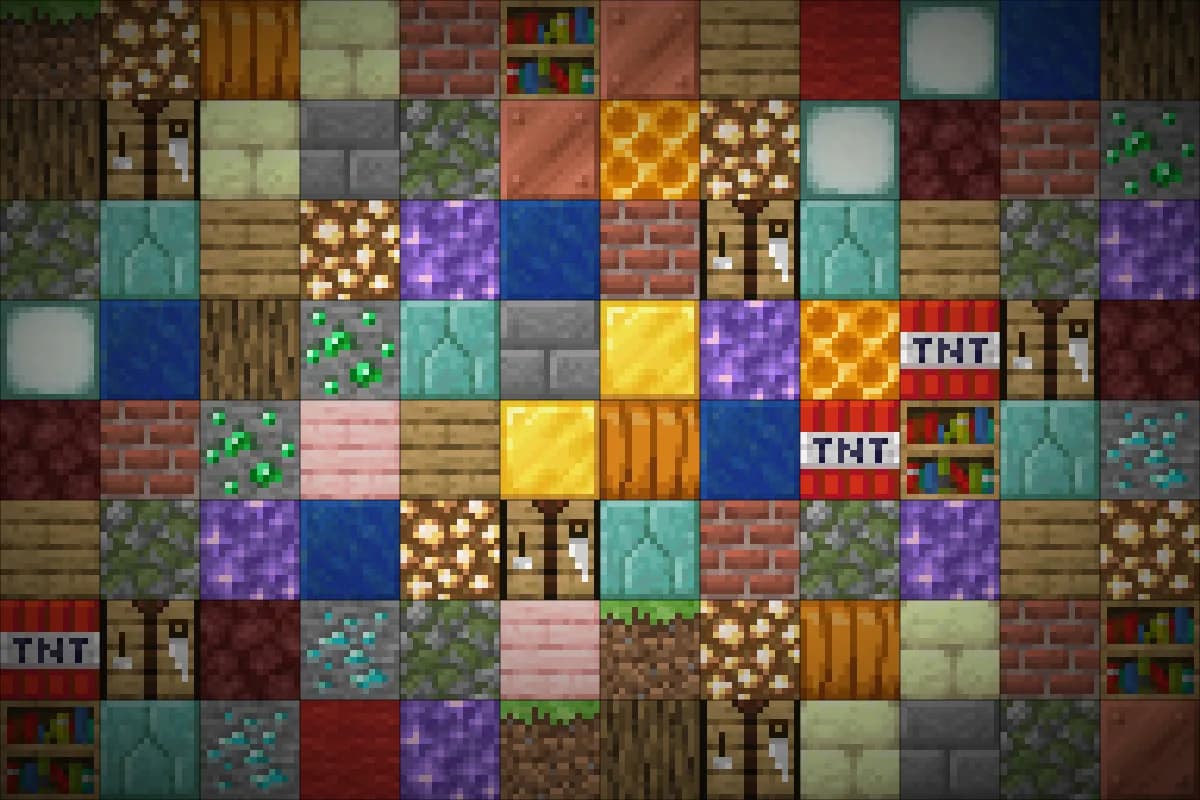
AI block textures

Minecraft texture generator for block textures

Choose your Minecraft version, describe an art direction and pick the blocks to repaint. Our AI redraws each texture from the original, in 16×16 pixel art or realistic HD, and you check every block in 3D before downloading.

Free to start · No credit card

Minecraft texture generator: block textures repainted by AI in pixel art and previewed in 3D

Repainted from the original

Each texture starts from the vanilla one, so shapes and layout stay where Minecraft expects them.

16×16 or realistic HD

Pixel art with a small palette for a vanilla look, or detailed HD textures for a realistic style.

One art direction

Write a style once and every texture you generate in the pack follows it.

3D preview per block

Click a block to see its new textures on every face of a 3D model.

How the AI Minecraft texture generator works

Start by choosing the Minecraft Java version, 1.13 or later. The block list and the original textures come from that exact version, so you only see blocks that exist in it.

Find the blocks you want to change by name, by ID such as minecraft:stone, or by their old numeric ID. Tick several at once to repaint a whole family, every plank or every ore, in one request.

Each selected texture is redrawn from its original in your art direction and added to your pack as soon as it is ready. Textures are drawn one after another, you can leave the page meanwhile, and any texture that fails is refunded.

16×16 pixel art or realistic HD textures

Pixel art mode produces 16×16 textures with a small color palette: the classic Minecraft look. Pick it when you want a new mood without breaking the game style, or when your textures sit next to vanilla blocks you did not repaint.

Realistic HD mode produces detailed, higher-resolution textures, like HD resource packs. They look sharper up close but are heavier to load in game, which matters for large packs and modest computers.

Leave the setting on Auto and the mode is chosen from your art direction: words such as “realistic” or “photo” lead to HD, otherwise pixel art is used. You can also force a mode for a given request.

  • Pixel art: 16×16, small palette, close to vanilla
  • Realistic HD: detailed textures, heavier in game
  • Auto: picked from the words in your art direction

Writing an art direction for Minecraft block textures

The art direction is a short description of the style you want. It applies to every texture you generate in the pack, so treat it like a brief for a texture artist: mood, colors, contrast and technique.

Concrete words work best. “Weathered pirate port, salt-bleached wood, teal and sand tones, soft contrast” tells the AI far more than “nice”. Add what must stay readable, like “keep ores easy to spot”, and what to avoid, like “no neon colors”.

You can change the art direction at any time. Textures already generated keep their look, which makes it easy to try a variant on a few blocks before applying it to the rest.

Check every block in 3D

A texture can look fine as a flat square and odd on a real block. Click any block to see it in 3D with its textures on every face: the top and bark of a log, the front and sides of a furnace, the top and sides of a crafting table.

The preview also flags details that matter when you repaint. Some textures are shared by several blocks, so changing one changes the others too. Others, like grass and leaves, are tinted by the biome color in game.

Blocks the game draws as entities, such as chests, signs and beds, are not part of the block list.

From a few textures to a complete look

Every texture you generate is stored in a resource pack project listed in My Projects. Come back later, repaint more blocks and download the pack again as a .zip with the right pack.mcmeta for your version.

Each texture uses one generation from your daily quota: 5 per day on the free plan, 20 on Pro and 50 on Ultimate. Start with the blocks players see most, such as stone, dirt, planks and logs, and extend from there.

How it works

  1. 1

    Pick the version

    Create a pack, name it and choose Minecraft Java 1.13 or later.

  2. 2

    Set the art direction

    Describe the style every texture in the pack should follow.

  3. 3

    Select blocks and generate

    Search and tick the blocks, choose Auto, Pixel art or Realistic HD, and start the generation.

  4. 4

    Preview and download

    Inspect each block in 3D, then download the pack as a .zip.

Art directions and blocks to try

Fairy-tale village
Art direction: fairy-tale village, hand-painted look, warm honey and moss tones, soft contrast. Blocks: oak planks, cobblestone, stone bricks.
Nordic frost
Art direction: cold Nordic village, frosted wood, pale blue and grey tones, pixel art close to vanilla. Blocks: spruce planks, spruce log, stone.
Realistic rock
Art direction: realistic HD, natural weathered rock, subtle moss in the cracks. Blocks: stone, cobblestone, mossy cobblestone.
Desert ruins
Art direction: sun-bleached desert ruins, sandy beige and terracotta, crisp 16x16 pixel art. Blocks: sandstone, cut sandstone, chiseled sandstone.
Easy-to-spot ores
Art direction: vanilla style with brighter, more saturated ore spots that stand out in dark caves. Blocks: coal ore, iron ore, gold ore, diamond ore.
Volcanic Nether
Art direction: volcanic, dark basalt with glowing orange cracks, pixel art. Blocks: netherrack, basalt, blackstone.

Frequently asked questions

Is the Minecraft texture generator free?

Yes. Any account can use it, free plan included, without a credit card. One texture costs one generation, so a free account can repaint up to 5 textures a day, fewer if it also uses other AI tools that day.

What resolution are the textures?

Pixel art textures are 16×16 with a small palette, like vanilla. Realistic HD textures use a higher resolution for a detailed look and are heavier to load in game.

Which Minecraft versions are supported?

Minecraft Java Edition 1.13 and later. The block list and the original textures come from the version you choose.

Can I generate item or mob textures?

The generator repaints block textures. Blocks drawn as entities, such as chests, signs and beds, are not included.

How do I use the textures in game?

Export the .zip from your pack, copy it into the resourcepacks folder and switch it on from the Resource Packs screen in the game options.

Do I need to repaint every block?

No. Only the blocks you repaint change in game; every other block keeps its vanilla texture.

Can I make a custom 3D item instead?

Yes, with the Blockbench model generator, which builds a cubic 3D model with its own pixel-art texture.

Repaint your first Minecraft blocks

Pick a version, write an art direction and watch your blocks change in 3D. Free to start, no credit card needed.

Generate textures

Updated September 17, 2026